How to Add an Events Calendar to a Divi Site
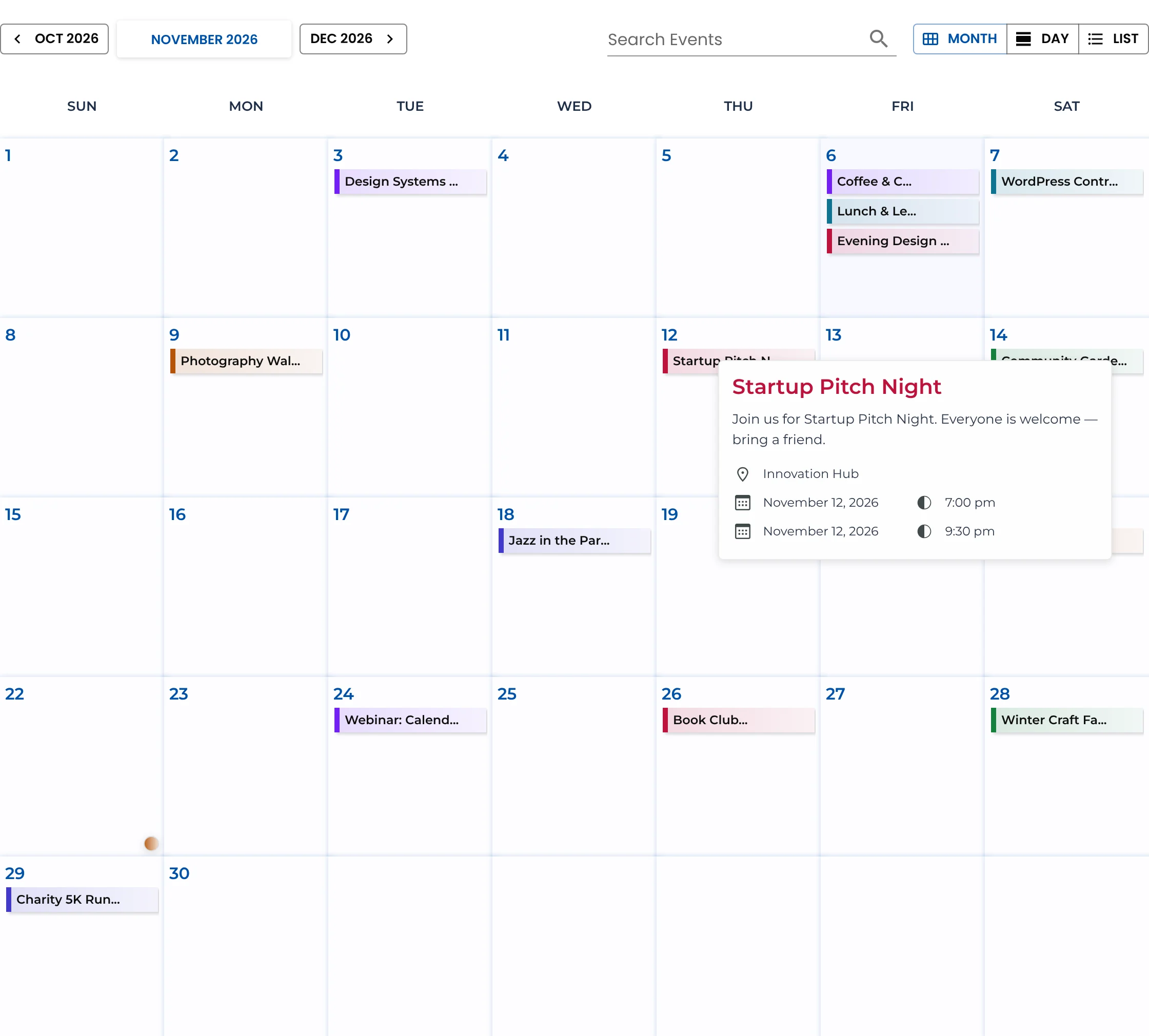
Divi has a module for almost everything, but not for events. You don’t need a paid Divi add-on to fix that: a free calendar plugin and Divi’s own Code module give you a full Divi events calendar, with proper event pages, in about ten minutes.
What you need: a site running the Divi theme (or the Divi Builder plugin) and the free Monthly Events Calendar plugin.
How the pieces fit
The calendar plugin stores your events and gives each one its own page. Divi decides where the calendar appears and what surrounds it. Because the events aren’t locked inside a Divi layout, you can move the calendar, redesign the page or change builders later without re-entering anything.
Step 1: Install the calendar and add events
- Plugins → Add New Plugin, search Monthly Events Calendar, install and activate.
- Events Calendar → Settings: set your date format, time format and timezone.
- Events Calendar → Add new Event: add a few events with a venue and a highlight colour.
Step 2: Add the calendar to a Divi page
- Open your Events page and click Use Divi Builder (or Edit with Divi from the front end).
- Add a Regular section with a one-column row. In the row settings, set Use Custom Width to around 1200 pixels if your site is narrow — the month grid likes room.
- Insert a Code module. (A Text module also works.)
- Paste:
[wp_monthly_events]- Save and exit the builder.
The Visual Builder may show the shortcode as text or an empty box while you edit. Exit the builder or preview the page to see the live calendar.
Step 3: Choose a starting view
| Where | Shortcode |
|---|---|
| Events page | [wp_monthly_events] |
| Homepage section or a column beside text | [wp_monthly_events view="list"] |
| Festival or conference schedule | [wp_monthly_events view="day"] |
Visitors can still switch views with the Month, Day and List buttons. Add one calendar per page.
Step 4: Style it the Divi way
- Section background: a light tint behind a white calendar looks clean. Set it on the Divi section, not the module.
- Heading and button: add a Text or Heading module above (“What’s on this month”) and a Button module below linking to the full calendar.
- Event colours: use your Divi global colours as each event’s Highlight Color — one colour per type of event.
- Spacing on phones: reduce the section’s top and bottom padding on mobile so the calendar starts above the fold.
Step 5: Use it in the Theme Builder (optional)
Want upcoming events on every page — for example above the footer? In Divi → Theme Builder, edit your Global Footer, add a section with a Code module, and paste [wp_monthly_events view="list"]. Keep it to the list view: it reads well in a band across the page.
Don’t assign a Divi template to the Events post type’s single pages unless you’ve tested it: event pages come with their own layout (date, venue and an Add to Calendar button), and a generic post template can hide those details.
Common Divi questions
Does it slow Divi down? The calendar loads its events after the page appears, so your page renders first. Caching plugins work normally. Read more about lightweight events calendars.
Can I use Divi’s fonts? Event pages use your theme’s header, footer and body styles. The calendar app uses its own compact typography so it stays readable in small cells.
Is it compatible with Divi 5? The calendar only needs a module that can output a shortcode, so it works with any Divi version that has the Code or Text module.
For other builders, see the page builder guide or our Elementor and Avada walkthroughs.
Keep reading
- How to Add an Events Calendar in Avada
- How to Add an Events Calendar to a Kadence Site
- Embed Google Calendar in WordPress — or Use an Events Plugin?
Add a calendar to your Divi site
Free, no Divi add-on needed.