Embed Google Calendar in WordPress — or Use an Events Plugin?
If your events already live in Google Calendar, embedding it on your site takes five minutes. It’s a perfectly good choice for some sites — and a frustrating one for others. Here’s how to embed Google Calendar in WordPress, and how to tell which camp you’re in.
In short: embed Google Calendar when the calendar is maintained in Google by other people and you don’t need event pages. Use an events plugin when you want each event to have its own page that people can find in search, share and save.
How to embed Google Calendar
1. Make the calendar public
In Google Calendar on a computer, open Settings, choose your calendar under Settings for my calendars, and in Access permissions for events tick Make available to public. Only events in this calendar will be visible — check it doesn’t hold anything private.
2. Copy the embed code
On the same settings page, scroll to Integrate calendar. Click Customize next to the embed code if you want to change the colours, default view, week start or which details show. Then copy the <iframe> code.
3. Add it to WordPress
- Block editor: add a Custom HTML block and paste the code.
- Classic editor: switch to the Text tab and paste.
- Page builders: use the builder’s HTML or Code element.
Publish and check the page on your phone.
4. Make it responsive
Google’s code has a fixed width and height. Change width="800" to width="100%" and set a sensible height (600–800 pixels), so it fits phones and wide screens alike.
What an embedded Google Calendar can’t do
The embed is Google’s calendar shown inside a frame on your page. That has some consequences:
- No event pages on your site. Clicking an event opens a small Google pop-up. There’s nothing to link to from a newsletter or social post except Google’s own page.
- Little for search engines. The events live on Google’s domain, inside an iframe — they don’t help your site appear for “events near me” or “[your town] concerts”.
- Limited styling. You can change a few colours. Fonts and layout stay Google’s.
- Mixed on phones. The agenda view is usable on a small screen; the month view is cramped.
- Privacy. Visitors’ browsers load the calendar from Google, which matters for some organisations’ privacy policies.
When embedding is the right call
- Someone else maintains the calendar in Google and that won’t change — a sports league, a school district, a shared team calendar.
- You only need a quick “what’s on” view, not individual event pages.
- The calendar changes constantly and is already shared with lots of people in Google.
When an events plugin is better
- You want each event to have a page with a description, image, venue and booking link.
- You want events to be found in Google search as part of your own site.
- You want it to look like your site and work well on phones.
- You want an Add to Calendar button for Google, Apple, Outlook and others on each event. How it works
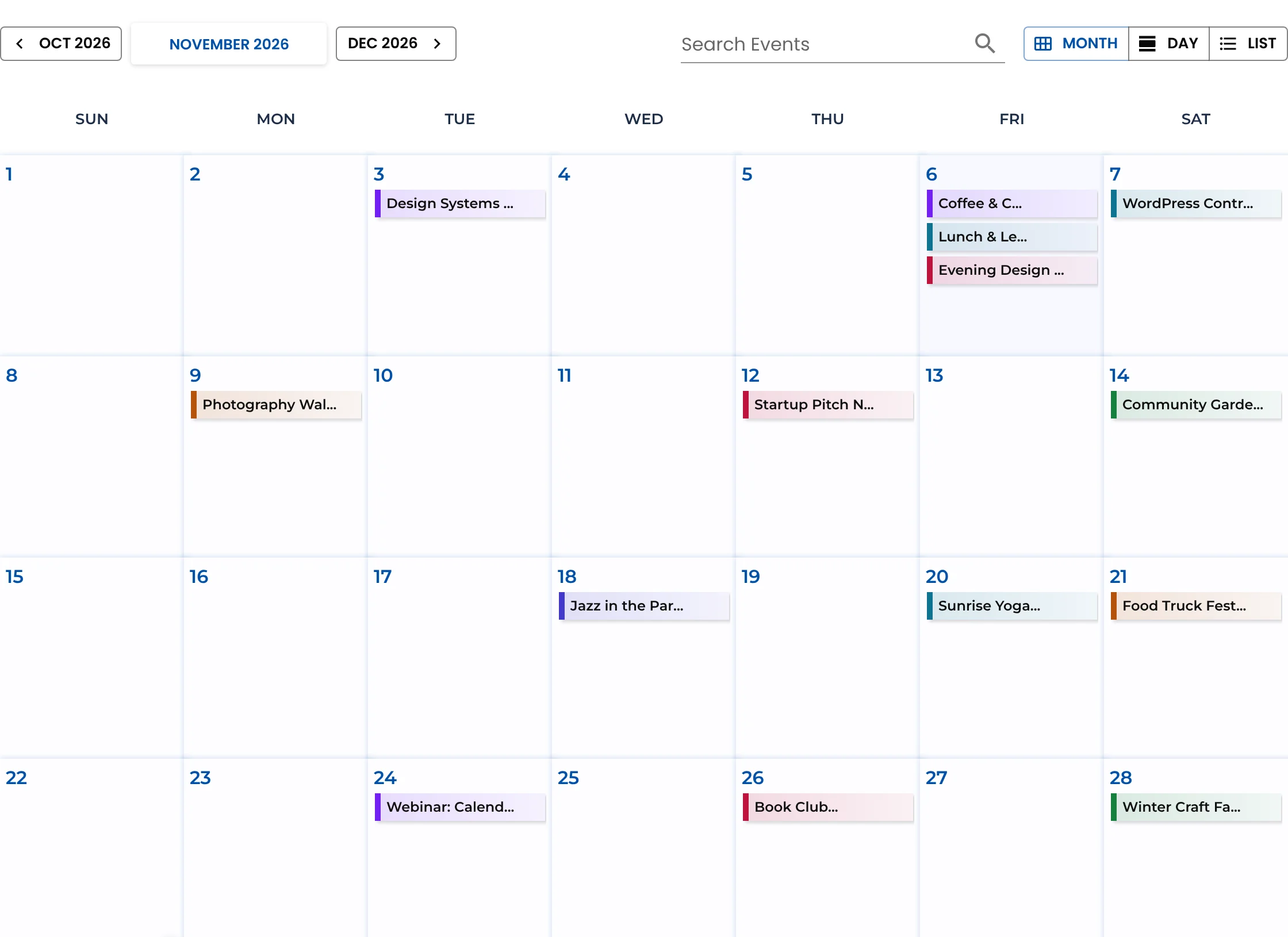
With a plugin like Monthly Events Calendar, events are created in WordPress and shown in month, list or day views, each with its own page.
Can I have both?
Yes. Many sites keep internal or shared calendars in Google and publish public events with a plugin. Visitors can still put plugin events into their Google Calendar with the Add to Calendar button.
There is also a middle way: import the Google Calendar into the plugin. Monthly Events Calendar 1.7 and newer takes your calendar’s iCal address and turns its events into event pages on your site. You keep editing in Google and click Sync now to update the site. How Google Calendar import works · Three ways to add Google Calendar to WordPress
Quick comparison
| Embedded Google Calendar | Events plugin | |
|---|---|---|
| Setup time | 5 minutes | 10–15 minutes |
| Event pages on your site | No | Yes |
| Helps your site in search | Very little | Yes |
| Matches your design | Partly | Yes |
| Add to Calendar for visitors | Google only | Google, Apple, Outlook and more |
| Edited in | Google Calendar | WordPress |
If you go the plugin route, our step-by-step guide shows how to add an events calendar to WordPress.
Keep reading
- How to Add Google Calendar Events to WordPress (3 Ways)
- How to Let Visitors Submit Events in WordPress (Free)
- How to Show Upcoming Events in WordPress (Homepage, Sidebar or Any Page)
Give every event its own page
Free, fast, and it looks like your site.