How to Add Google Calendar Events to WordPress (3 Ways)
Your events are already in Google Calendar, and you’d like them on your website without typing them twice. There are three ways to add Google Calendar to WordPress. They take from one minute to five, and they give very different results.
In short: embed the calendar if you only need people to see it. Import it if you want each event to have its own page, match your site’s design and show up in search results.
The three ways at a glance
| Embed | Import as events | Link | |
|---|---|---|---|
| Time to set up | 5 minutes | 5 minutes | 1 minute |
| Looks like your site | No | Yes | — |
| A page for each event | No | Yes | No |
| Found by search engines | No | Yes | No |
| Updates when Google changes | Instantly | When you click Sync now | Instantly |
| Needs a plugin | No | Yes (free) | No |
Way 1: embed the calendar
Google gives every public calendar a snippet of code that shows it inside a frame on your page.
- In Google Calendar, open Settings and click your calendar.
- Under Access permissions for events, tick Make available to public.
- Under Integrate calendar, copy the Embed code.
- In WordPress, add a Custom HTML block to your page and paste the code.
It’s quick, and changes in Google appear at once. The limits: the frame keeps Google’s look, it’s awkward on phones, and search engines don’t see your events as part of your site. More on embedding, and how to tidy it up
Way 2: import the calendar as real events
With an events plugin that reads Google’s calendar feed, your Google events become events on your site. Here’s how with the free Monthly Events Calendar plugin (version 1.7 or newer).
- Install the plugin. Go to Plugins → Add New Plugin, search for “Monthly Events Calendar”, install and activate it.
- Copy the calendar’s address. In Google Calendar’s Settings, click your calendar, scroll to Integrate calendar and copy “Public address in iCal format”. For a private calendar, copy “Secret address in iCal format”.
- Import it. Go to Events Calendar → Import Calendar, paste the address and click Import events.
- Show the calendar. Add the Monthly Events Calendar block to a page, or paste the shortcode below.
[wp_monthly_events]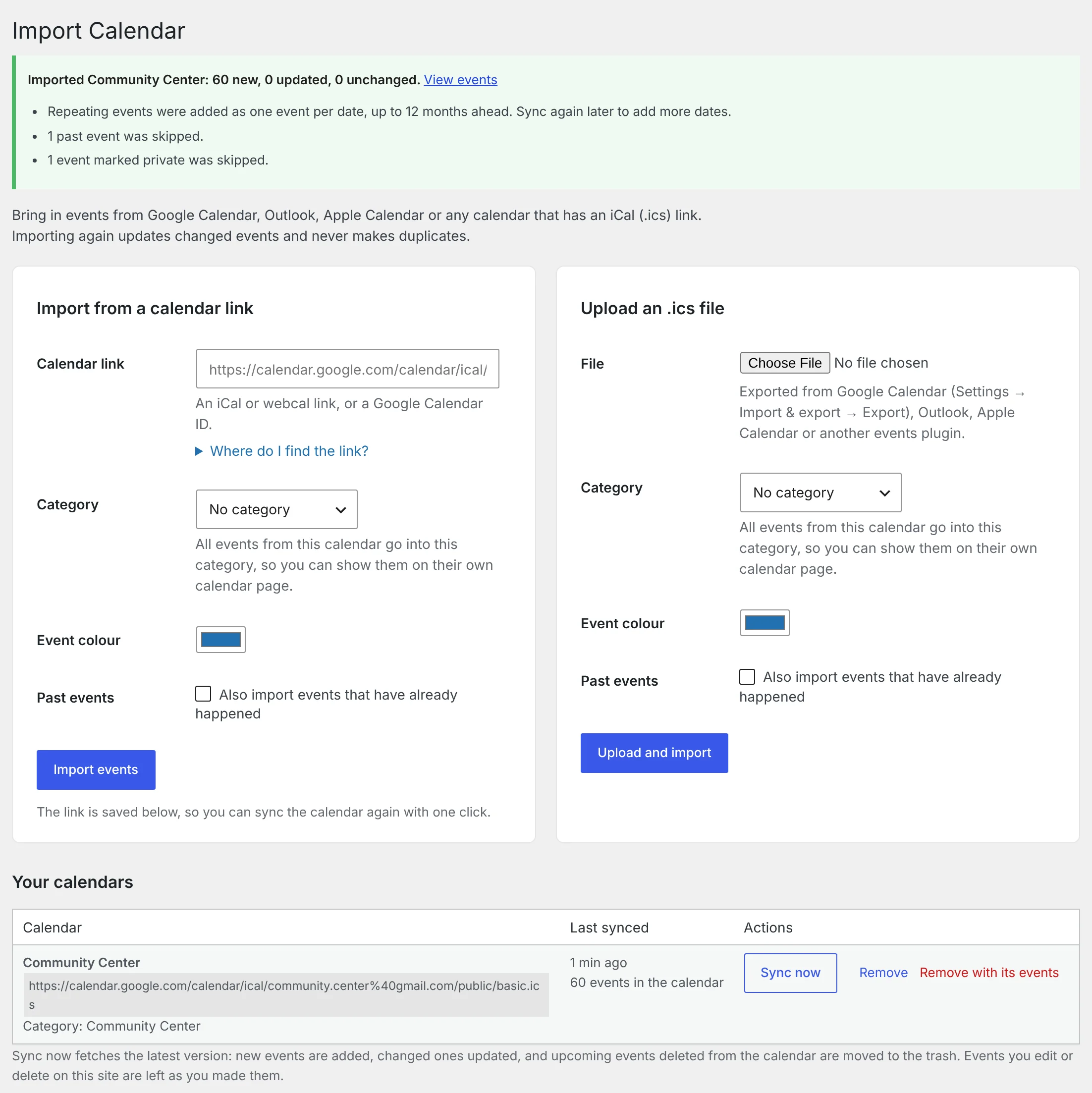
What you get that an embed can’t give you:
- A page for every event, with its own address to share and for search engines to find.
- Month, list and day views in your site’s design, which work on phones.
- An Add to Calendar button on each event, for Google, Apple and Outlook users alike.
- Times in each visitor’s own timezone.
- Repeating events, added date by date.
When the Google Calendar changes, click Sync now. New events are added, changed ones are updated, and nothing is duplicated. Syncing is a click, not automatic, so this suits calendars that change weekly more than ones that change hourly. Full import guide
Way 3: link to the calendar
If you just want people to be able to subscribe, link to it. In Google Calendar’s settings, copy Public URL to this calendar and put it behind a button: “Subscribe to our calendar”. Visitors who click it can add the whole calendar to their own Google account.
This shows nothing on your site, so it works best alongside one of the other two ways.
Which should you choose?
- A room-booking or staff calendar that other people maintain in Google: embed it.
- Public events you want people to find, share and attend: import them.
- Both: many sites embed an internal calendar on a members page and import public events for everyone else.
Does my Google Calendar have to be public?
For an embed, yes. For an import, no: the secret iCal address works for private calendars. Keep that address to yourself.
Can I do the same with Outlook or Apple Calendar?
Yes. Both can share a calendar as an ICS or webcal link, and the import accepts those too.
Will editing an event in WordPress change it in Google?
No. The import goes one way, from Google to your site. Edits you make in WordPress are kept when you sync.
Keep reading
- How to Let Visitors Submit Events in WordPress (Free)
- How to Show Upcoming Events in WordPress (Homepage, Sidebar or Any Page)
- How to Add an Events Calendar to WordPress (Step by Step)
Turn your Google Calendar into event pages
Free, with nothing to configure.