
Step 1: get your calendar’s link
Google Calendar (on a computer)
- Click the gear icon, then Settings.
- Under Settings for my calendars, click the calendar.
- Scroll to Integrate calendar.
- Copy Public address in iCal format. If the calendar isn’t public, copy Secret address in iCal format instead.
You can also paste just the Calendar ID from the same section, or a Google Calendar embed link; the plugin works out the address. This only works for public calendars.
Outlook.com and Microsoft 365
- Open Settings → Calendar → Shared calendars.
- Under Publish a calendar, choose the calendar and Can view all details, then click Publish.
- Copy the ICS link.
Apple iCloud Calendar
- In the Calendar app, share the calendar and turn on Public Calendar.
- Copy the link. It starts with
webcal://, which is fine.
Anything else: look for “Export”, “Subscribe” or “iCal feed”. Any link to an .ics file works.
Step 2: import it
- In WordPress, go to Events Calendar → Import Calendar.
- Paste the link into Calendar link.
- Optional: choose a Category (or create one), an Event colour, and whether to include past events.
- Click Import events.
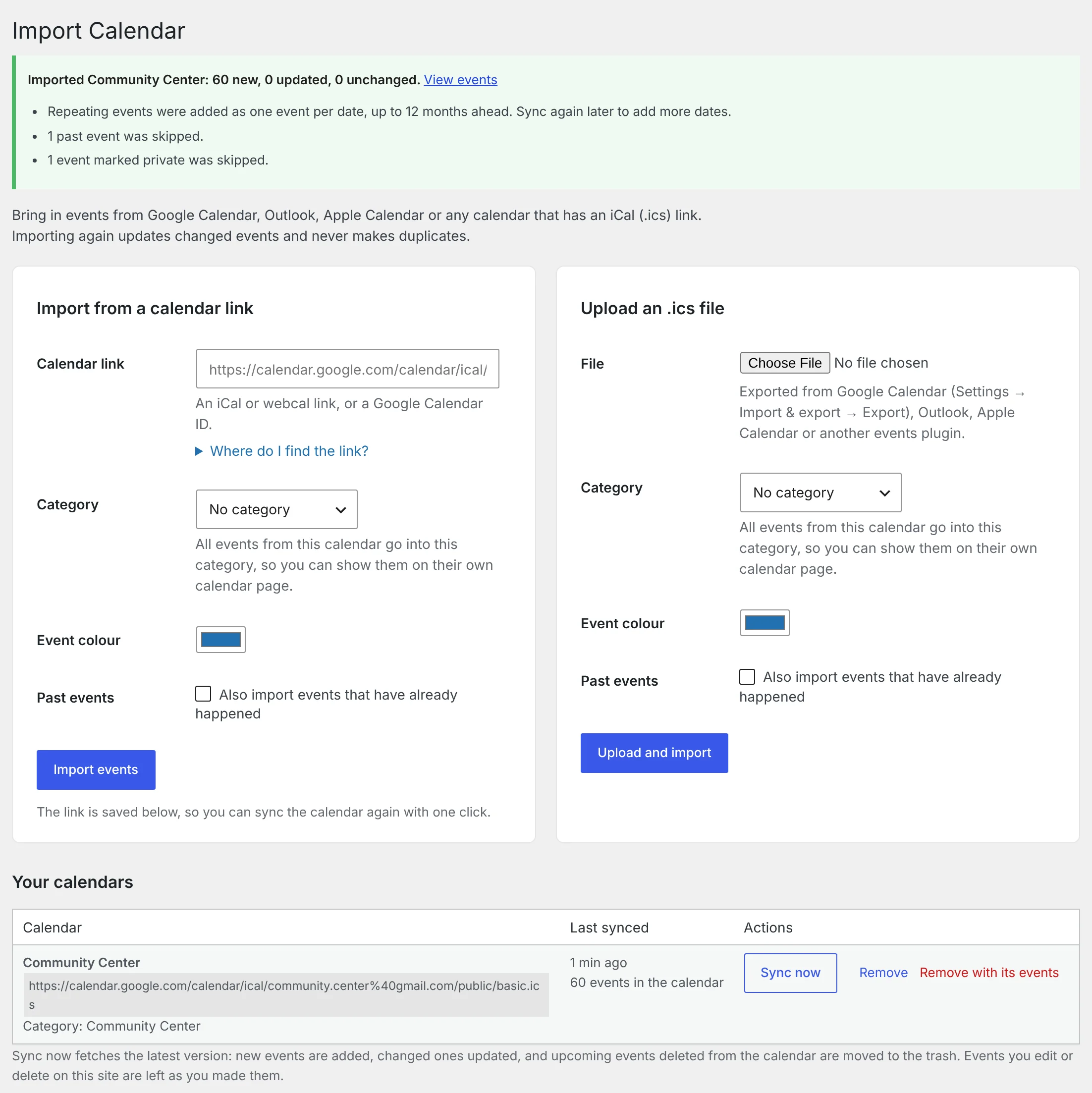
A green message tells you how many events were added, and anything that was skipped.
Import an ICS file instead
If you have a file rather than a link — for example from Google Calendar’s Settings → Import & export → Export — use Upload an .ics file on the same screen. A file is imported once; there is nothing to sync later.
Keep it up to date: Sync now
Calendars imported from a link are listed under Your calendars. Click Sync now to fetch the latest version.
| In your calendar | On your site after Sync now |
|---|---|
| New event | Added |
| Changed event | Updated |
| Upcoming event deleted | Moved to the trash |
| Past event deleted | Kept as a record |
Two rules protect your own work:
- An event you edited in WordPress is not overwritten. Your version stays.
- An event you deleted in WordPress is not added again.
Syncing happens when you click the button. It is not automatic.
What is imported
- Title, description (links are kept), start and end, timezone and all-day setting.
- Location: a venue is created from the place name and address. If the location is a web link, such as a video call, it becomes the event’s website instead.
- Categories set on events in the feed become event tags.
- Repeating events become one event per date, for the next 12 months. Sync again later to add further dates.
Not imported: events marked private, cancelled events, and past events (unless you tick the box).
Show one imported calendar on its own page
Give the calendar a category when you import it, then use that category in the shortcode (1.8 or newer):
[wp_monthly_events category="community-center"]Remove a calendar
Under Your calendars:
- Remove takes the calendar off the list and keeps its events.
- Remove with its events also moves its events to the trash.
Troubleshooting
“Google says this calendar is not public.” Use the Secret address in iCal format, or make the calendar public in Google Calendar’s settings.
“This is not an iCal (.ics) calendar.” The link opened a web page, not a calendar feed. Check that you copied the iCal or ICS address and not the address of the calendar’s web page.
Times look wrong. Check the timezone of the calendar in Google, Outlook or Apple. Events keep the timezone they were created in, and visitors see their own local time.
“Could not download the calendar.” Your server couldn’t reach the link. Try opening the link in a browser: it should download a file. If it does, ask your host whether outgoing connections are blocked.
More help: Troubleshooting · Support