
Home Docs Switch from The Events Calendar
Switch from The Events Calendar
You can migrate from The Events Calendar without a risky one-way export. Monthly Events Calendar 1.6 shows your existing events straight away, read-only, and only copies them when you decide to stay. The Events Calendar’s own data is never changed.
How to migrate from The Events Calendar, step by step
- Install Monthly Events Calendar next to The Events Calendar. You don’t need to deactivate anything yet.
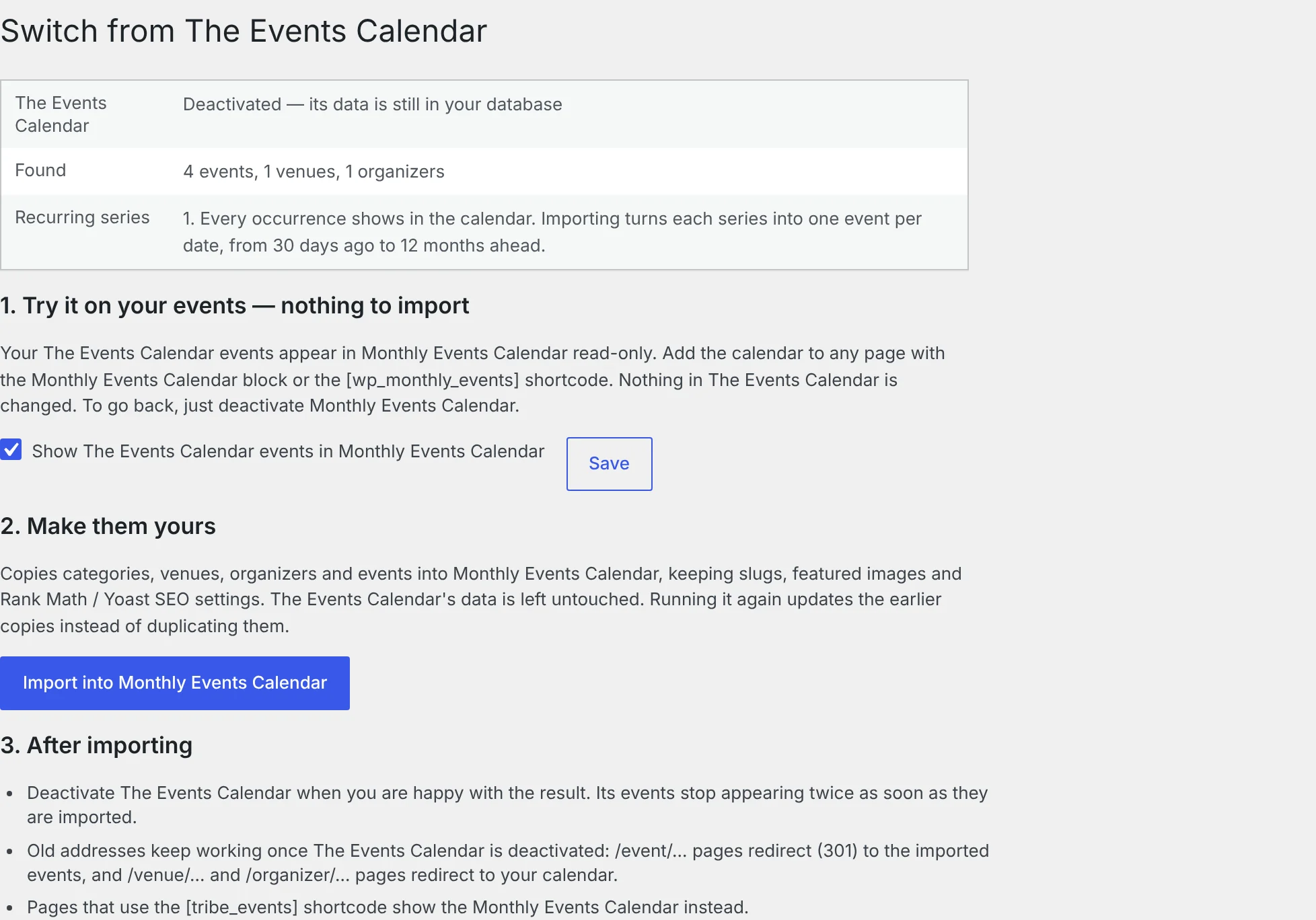
- Look at your events. Open Events Calendar → Switch from TEC. It lists how many events, venues and organizers it found, and whether any are recurring series. Those events already appear in the Monthly Events Calendar block and shortcode — every date of a recurring series included.
- Try it on a page. Add the Monthly Events Calendar block to a draft page and browse your real events in month, list and day views.
- Import when you’re happy. Click Import into Monthly Events Calendar. It runs in small batches with a progress counter; if it stops, click again and it continues.
- Deactivate The Events Calendar. Old event addresses now redirect to the imported events, and pages using
[tribe_events]show the new calendar.
What gets imported
| From The Events Calendar | Becomes |
|---|---|
| Events (published, scheduled, draft, pending, private) | Events with the same title, content, excerpt, slug, author, status and publish date |
| Start, end, timezone, all-day | The same local times and timezone; all-day stays all-day |
| Recurring series (Events Calendar Pro) | One event per date, from 30 days ago to 12 months ahead |
| Venues | Venues with address, city, state, country, postal code, phone and website |
| Organizers | Organizers with phone, email and website |
| Event categories (including parent/child) | Event categories with the same names and slugs |
| Tags | Event tags |
| Featured images | The same images (nothing is downloaded again) |
| Event website | Event website |
| Rank Math and Yoast SEO titles, descriptions and focus keywords | Copied to the imported event |
Running the import again updates the earlier copies instead of creating duplicates, so you can import, keep using The Events Calendar for a while, and import again before switching for good.
Keeping your SEO
- Event URLs: the default single event address in The Events Calendar is
/event/your-event/, and in Monthly Events Calendar it’s/events/your-event/. Once The Events Calendar is deactivated, every old/event/…URL returns a 301 redirect to the imported event — including recurring dates like/event/yoga/2026-11-18/. - Venue and organizer URLs (
/venue/…,/organizer/…) redirect to your calendar page. - SEO settings: Rank Math and Yoast titles, descriptions and focus keywords come across with each event.
- Slugs are kept, so links you’ve shared keep the same last part.
Before you deactivate The Events Calendar
- While both plugins are active, The Events Calendar keeps the
/events/address if both use the same slug. Nothing breaks; Monthly Events Calendar takes over/events/once you deactivate it. - Tickets and RSVPs from Event Tickets aren’t imported — Monthly Events Calendar doesn’t sell tickets yet. Keep Event Tickets running for events that still have sales open.
- Recurring series become separate events. Recurring events are planned for version 2.0, and the importer tags each copy with its series so they can be merged later.
- Changed your mind? Deactivate Monthly Events Calendar and reactivate The Events Calendar. Its data was never touched.
Frequently asked questions
Will my events show twice after importing?
No. As soon as an event is imported, the read-only copy from The Events Calendar is hidden from the calendar.
Can I turn off the read-only display?
Yes. Untick Show The Events Calendar events in Monthly Events Calendar on the Switch from TEC page.
Does it work if The Events Calendar is already deactivated?
Yes. It reads the data from the database directly, so it works whether The Events Calendar is active, deactivated or deleted (as long as its data wasn’t removed).
Which versions of The Events Calendar are supported?
Version 6 and later (with its custom tables) and older versions that store dates in post meta.