
The one thing you need
Every builder below uses the same shortcode:
[wp_monthly_events]Add view="list" or view="day" to choose which view the calendar opens on, for example [wp_monthly_events view="list"]. Without it, the calendar opens on the default view from Events Calendar → Settings. Shortcode reference
One calendar per page. The calendar is a single app on the page, so add it once. If you need several views, put one calendar on the page — visitors switch views with its Month, Day and List buttons.
Block editor and Kadence
In the block editor, you don’t need the shortcode at all: add the Monthly Events Calendar block and choose the Default view in the block sidebar.
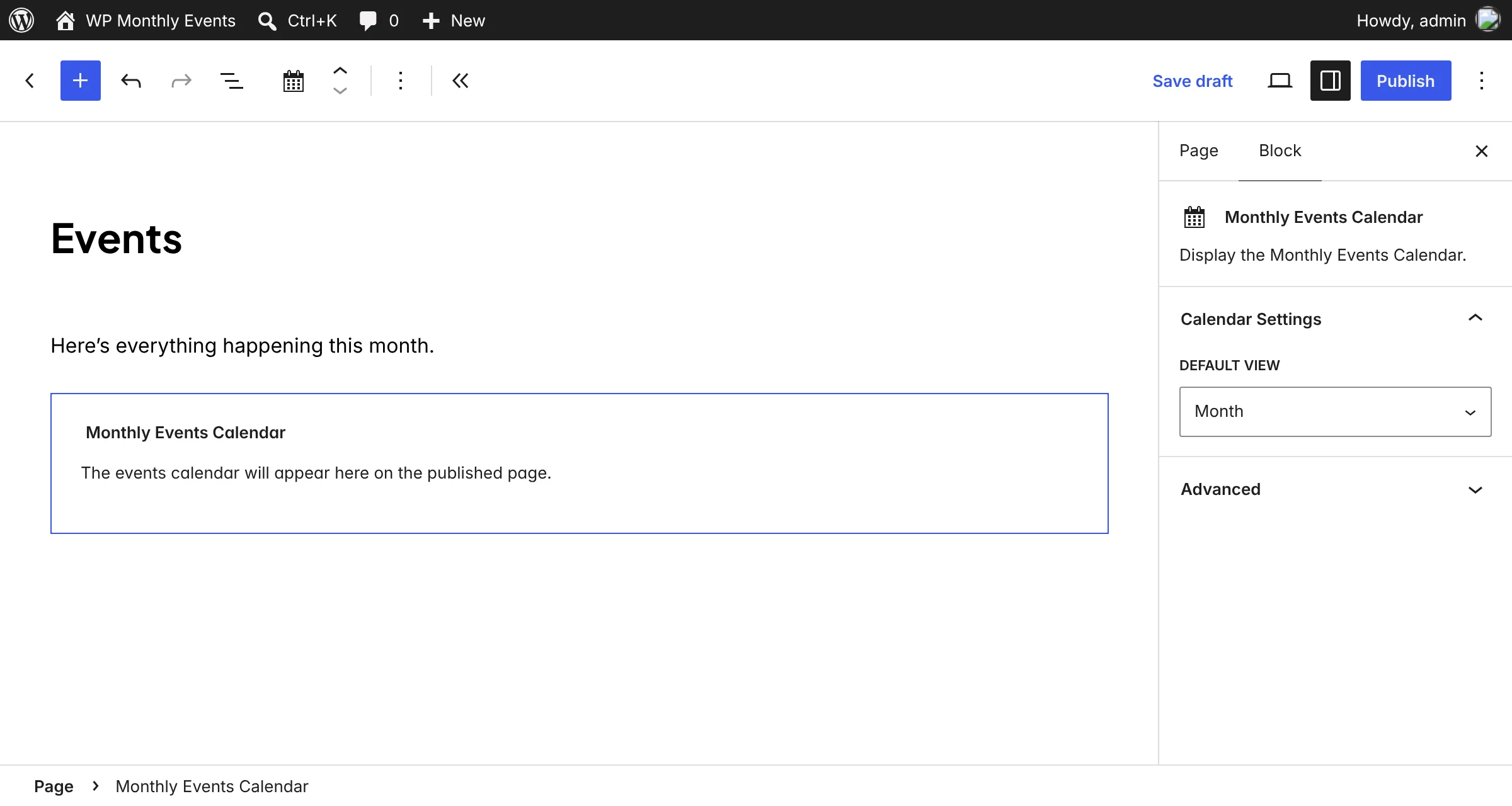
With Kadence Blocks, add a Row Layout, pick a single column, and insert the Monthly Events Calendar block inside it. Set the row’s content width to the theme default or wider — the month grid needs room. The same works inside any other block-based layout plugin. Kadence guide
Elementor
- Edit the page with Elementor.
- Search the widget panel for Shortcode and drag it into a section.
- Paste
[wp_monthly_events]and click Update.
Use a full-width or boxed container of at least 900 pixels for the month view; for narrower columns, use view="list". Full Elementor guide
Divi
- Open the page in the Divi Builder.
- Add a Code module (or a Text module) to a full-width row.
- Paste the shortcode and save.
Avada (Fusion Builder)
- Edit the page with Avada Builder.
- Add a Code Block element — or a Text Block — to a full-width column.
- Paste the shortcode and save.
Beaver Builder, WPBakery and Bricks
| Builder | Element to use |
|---|---|
| Beaver Builder | HTML module, or a Text Editor module |
| WPBakery | Text Block, or Raw HTML |
| Bricks | Shortcode element |
| Classic editor | Paste the shortcode on its own line |
Why the calendar may look empty in the builder
Some builders show shortcodes as a plain box while you edit, or load the page without its scripts. That’s normal: preview or view the page to see the live calendar. If it’s still empty on the live page, see troubleshooting.
Layout tips
- Give the month view space. It’s a seven-column grid; under about 700 pixels wide it adapts, but a full-width section looks best.
- Use the list view in narrow places — homepage sections, columns beside text, landing pages.
- Don’t put it inside tabs or accordions that start closed. A calendar that loads hidden may need a page refresh to size itself. Put it in normal page flow.
- Keep one calendar page as the “home” of your events and set it under Events Calendar → Settings → Select Calender Page, so category pages link back to it.