How to Add an Events Calendar in Elementor (Free)
Elementor doesn’t include an events calendar, and Elementor Pro doesn’t either. The good news: you don’t need Pro, or an Elementor-only add-on. Any events calendar with a shortcode drops straight into the free Shortcode widget. Here’s how to build an Elementor events calendar that looks like part of your design.
What you need: WordPress, the free Elementor plugin and the free Monthly Events Calendar plugin. Time: about 15 minutes, most of it adding your first events.
Why use a calendar plugin rather than an Elementor widget
Some Elementor add-on packs include a “calendar” widget. They’re often a grid you fill in by hand inside Elementor, which means:
- events don’t get their own pages, so they can’t be shared or found in Google;
- you edit events inside page designs instead of a simple form;
- switching away from the add-on pack loses everything.
A calendar plugin keeps events as proper WordPress content. Elementor only decides where the calendar sits on the page — if you ever rebuild your site with another builder, the events stay put.
Step 1: Install Monthly Events Calendar
Go to Plugins → Add New Plugin, search for Monthly Events Calendar, install and activate it. Then add three or four events under Events Calendar → Add new Event, each with a date, a venue and a highlight colour. Our guide to creating events covers every field.
Step 2: Add the Shortcode widget
- Edit your Events page (or create one) with Elementor.
- Add a section. For the month view, use a full-width or boxed container at least 900 pixels wide.
- In the widget panel, search for Shortcode and drag it into the container.
- Paste the shortcode:
[wp_monthly_events]- Click Update.
The Elementor editor may show a placeholder instead of the live calendar. That’s normal — click the eye icon to preview, or open the page in a new tab.
Step 3: Pick the view that fits your layout
Add a view option to choose where the calendar opens:
| Layout | Shortcode |
|---|---|
| Full-width events page | [wp_monthly_events] (month view) |
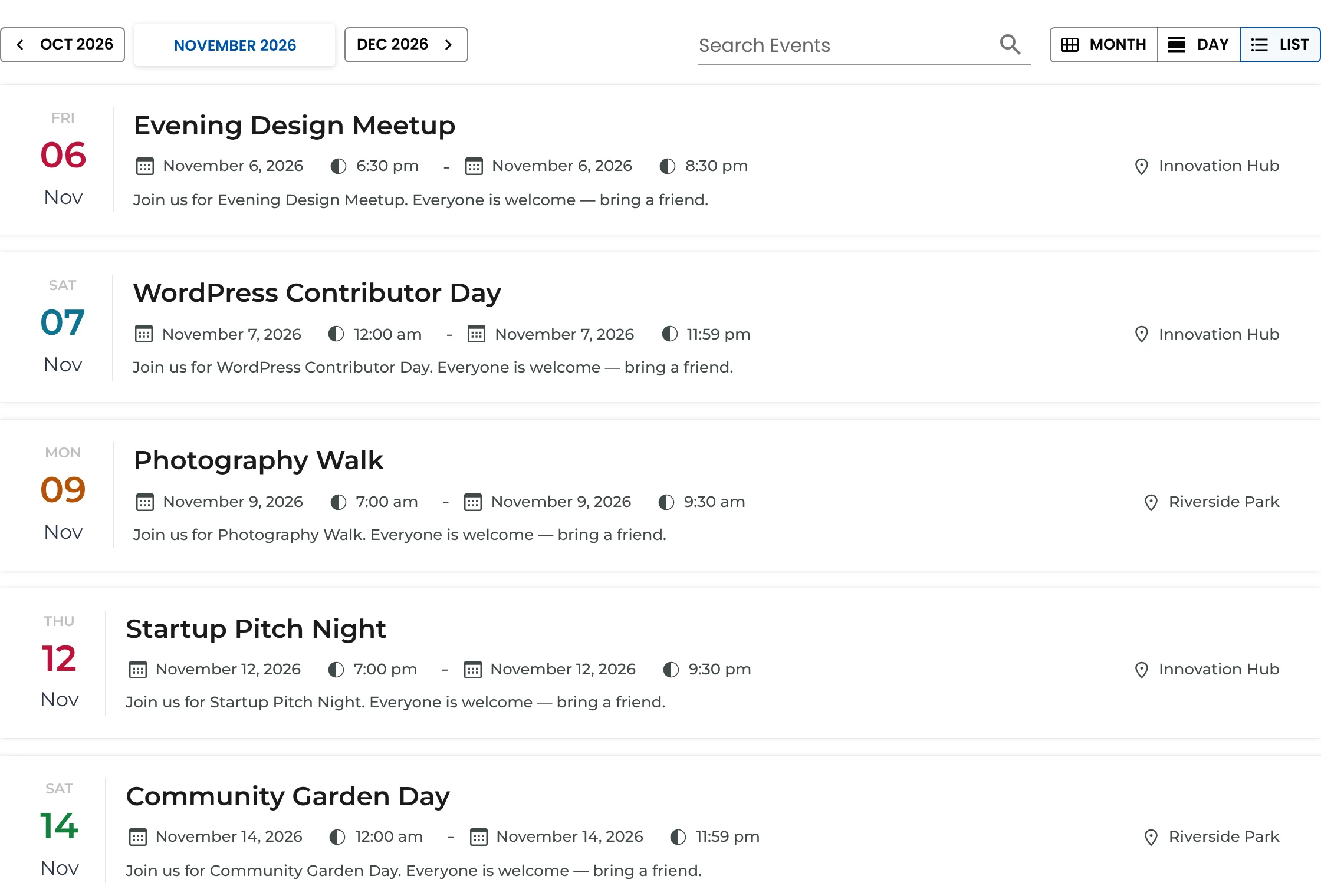
| Homepage “What’s on” section | [wp_monthly_events view="list"] |
| Conference or festival schedule | [wp_monthly_events view="day"] |
Visitors can switch views with the buttons at the top of the calendar either way. Use one calendar per page.
Step 4: Make it match your design
The calendar inherits your theme’s fonts for event pages, and most styling comes from the events themselves:
- Colours: each event’s Highlight Color tints its bar in the month view and its date in the list. Pick colours from your Elementor global palette and use them consistently per type of event.
- Spacing: give the section some top and bottom padding (40–80 pixels) so the calendar doesn’t touch the section above.
- Headline: add an Elementor Heading widget above the calendar (“Upcoming events”) and a Button widget below it linking to your full calendar page if this is a homepage section.
- Search: in a small homepage section, turn the search box off under Events Calendar → Settings.
Step 5: Event pages
Each event gets its own page automatically, with the date, venue, and an Add to Calendar button for Google, Apple, Outlook.com and more. Event pages use the plugin’s own event template inside your theme’s header and footer — not an Elementor template — so they stay fast and consistent even if you redesign your pages later.
If you use Elementor Pro’s Theme Builder, check that a “Singular” template isn’t set to apply to all post types — or exclude the Events post type — so event pages keep their event details.
Troubleshooting
The calendar shows on the preview but not the live page. Clear your caching plugin and Elementor’s CSS cache (Elementor → Tools → Regenerate CSS & Data).
It shows “loading” forever. The calendar loads events through the WordPress REST API; some security plugins block it for visitors. See troubleshooting.
Two calendars on one page. Only the first will work. Use one calendar and let visitors switch views.
For the other builders, see our page builder guide, or the step-by-step guides for Divi, Avada and Kadence.
Keep reading
- How to Add an Events Calendar to a Divi Site
- How to Add an Events Calendar in Avada
- How to Add an Events Calendar to a Kadence Site
Add a calendar to your Elementor site
Free, works with free Elementor, ready in minutes.