How to Show Upcoming Events in WordPress (Homepage, Sidebar or Any Page)
Visitors land on your homepage, not your calendar page. If you want people to come to your events, the easiest win is to show upcoming events right where they arrive. This guide shows how to show upcoming events in WordPress with the free Monthly Events Calendar plugin — on the homepage, in a page builder section, or on any page — without writing code.
What you’ll end up with
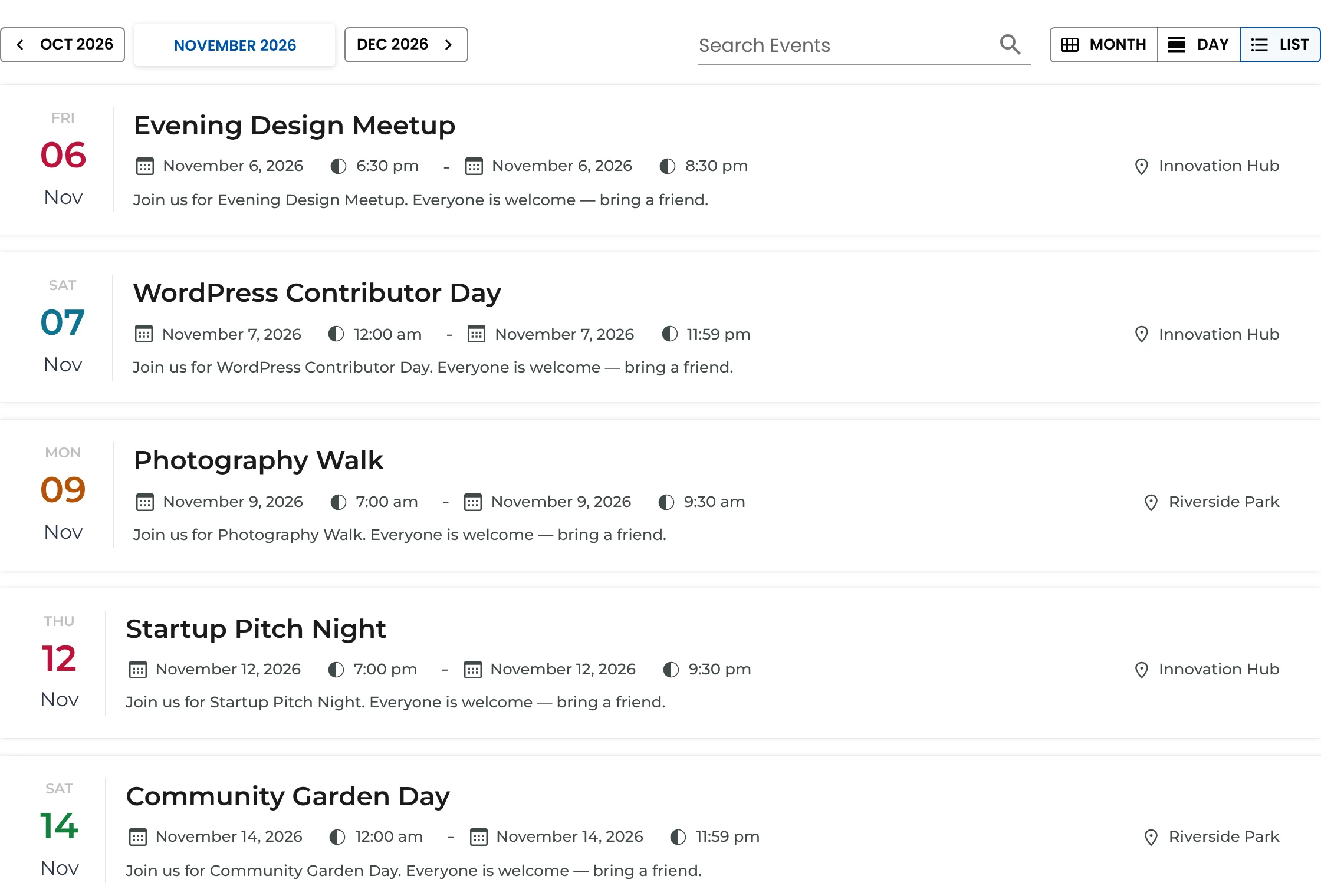
A list of your next events, in date order, each with its date, title, time, venue and a short description, linking to the full event page. Events that have already finished are labelled “Ended”, and visitors can switch to a month or day view if they want to browse further.
Step 1: Install the plugin and add events
- Go to Plugins → Add New Plugin, search for Monthly Events Calendar and click Install Now, then Activate.
- Go to Events Calendar → Add new Event and create two or three events with dates in the next few weeks. Add a venue and a featured image so the list looks complete.
The installation guide covers each field.
Step 2: Show upcoming events with the list shortcode
The list view is the right format for “what’s on next”. Copy this shortcode:
[wp_monthly_events view="list"]Where you paste it depends on how your homepage is built:
- Block editor (Gutenberg): edit the homepage, add a Shortcode block where the events should go and paste the shortcode — or add the Monthly Events Calendar block and set its Default view to List.
- Kadence: add a Row Layout section, then a Shortcode block inside it.
- Elementor: drag a Shortcode widget into the section and paste the shortcode.
- Avada / Fusion Builder: add a Code Block or Text Block element and paste it.
- Classic editor: paste the shortcode on its own line.
Update the page and check it on your phone as well as your desktop — the list stacks neatly on small screens.
Step 3: Make it look right
- Give it a heading above the list, like “Upcoming events”, and a button below linking to your full calendar page.
- Use colours: each event’s highlight colour tints its date badge, so a category-like colour scheme (blue for workshops, green for community days) makes the list easy to scan.
- Turn off search if the list is in a small section: Events Calendar → Settings → Enable or Disable Search.
Step 4: Link to the full calendar
Create a page called “Events” with [wp_monthly_events] (month view), and set it under Events Calendar → Settings → Select Calender Page. The /events/ address on your site also shows the calendar automatically.
Common questions
Can I show only one category’s upcoming events?
Each event category has its own page with a calendar of just that category — link to it from your homepage. A category option for the shortcode is a good candidate for a future release.
What happens when there are no upcoming events this month?
The calendar jumps to your next upcoming events, so the section is never empty while you have future events.
Will caching show old events?
No. The list loads events from your site’s REST API after the page loads, so cached pages still show current events. If nothing appears at all, see troubleshooting.
Next steps
Read more about the event list view, or see every option in the shortcode reference.
Keep reading
- How to Add an Events Calendar to WordPress (Step by Step)
- How to Add an Events Calendar in Elementor (Free)
- How to Add an Events Calendar to a Divi Site