How to Set Up a Library Events Calendar in WordPress
Libraries run more events than almost anyone: story times, book clubs, computer classes, author talks, homework clubs. A library events calendar has to handle a lot of events, several branches and audiences from toddlers to retirees — and be usable by everyone. Here’s how to set one up on WordPress.
In short: categories for programme type, tags for age groups, one venue per branch or room, and a calendar page plus a list of what’s on today and this week on the homepage.
Structure that matches how people search
People look for library events in two ways: what (story time, book club) and who for (kids, teens, adults). Set the calendar up the same way:
| What | Use | Examples |
|---|---|---|
| Programme type | Event categories | Story time, Book clubs, Digital skills, Talks & authors, Crafts, Study support |
| Audience | Event tags | under-5s, children, teens, adults, families, all ages |
| Branches and rooms | Venues | Central Library — Children’s Area, North Branch — Meeting Room |
| Staff or partners | Organizers | Children’s librarian, partner charity |
Each category and tag has its own calendar page, so “everything for teens” is one link: /events-tag/teens/. Categories and tags
Step 1: Install and set up
Install Monthly Events Calendar from Plugins → Add New Plugin. In Events Calendar → Settings, set your timezone and date format, and choose a default view — the list view suits libraries with many small events; the month view suits those with fewer, bigger ones.
Step 2: Add branches and rooms as venues
Under Events Calendar → Venues, add each branch (and each bookable room, if you use them) with the full address and phone number. They appear on every event page, so people always know which branch an event is at.
Step 3: Write event listings for everyone
- Title: what and who — “Rhyme Time for Under-5s”, “Beginners’ Smartphone Class”.
- Time: start and end. Say if people should arrive early.
- Booking: free drop-in, or book ahead? Put the booking link in the event’s URL field.
- Access: step-free access, hearing loop, large-print materials, BSL interpretation — say what’s available.
- Image alt text: describe the featured image for screen-reader users.
Step 4: Publish it
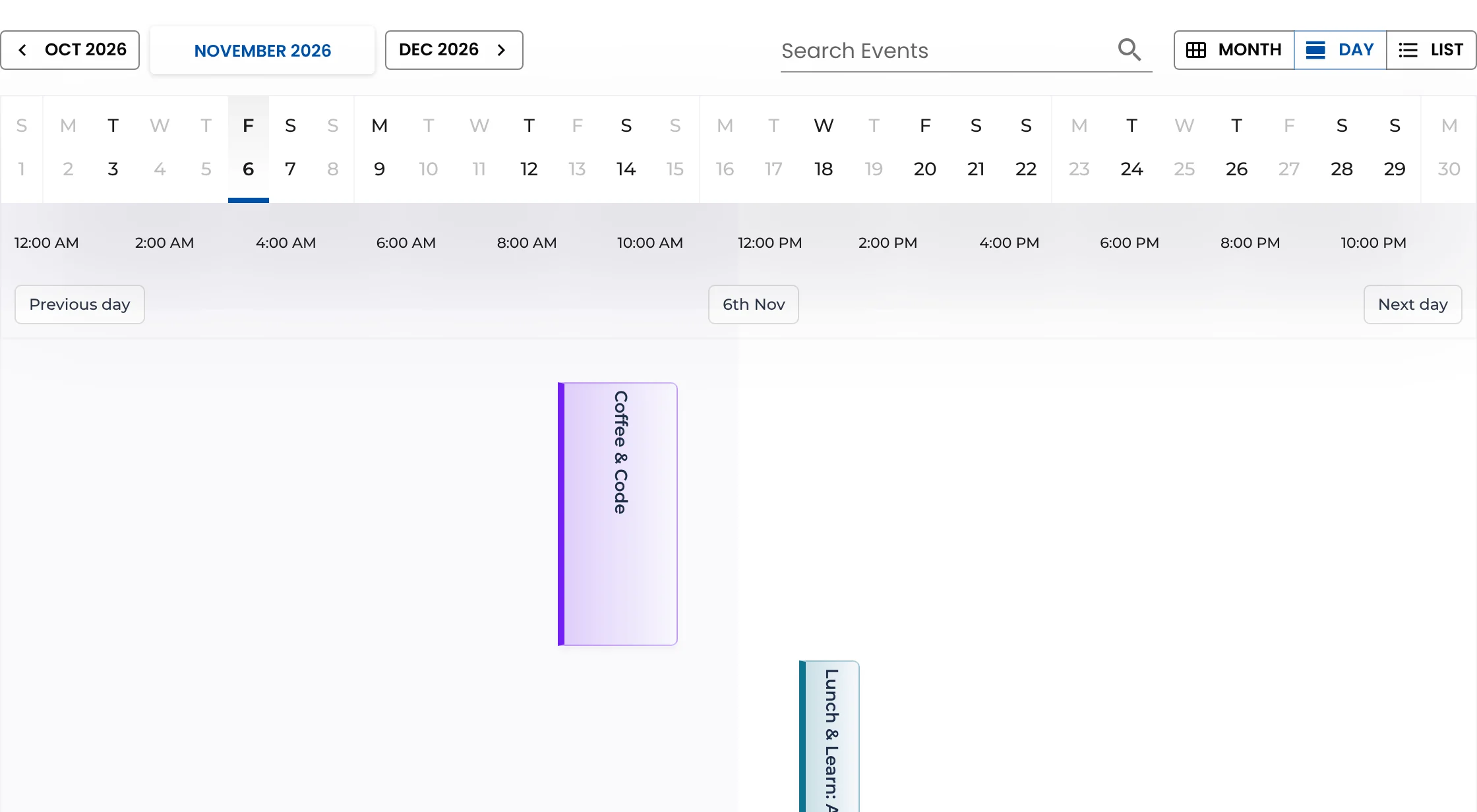
- An Events page with the calendar (block or
[wp_monthly_events]). - On the homepage, the next events with
[wp_monthly_events view="list"]. - On each branch page, a link to the calendar and a short note about regular events at that branch.
- On your children’s and teens’ pages, links to the matching tag calendars.
Step 5: Regular programmes
Weekly story times and monthly book clubs are the backbone of a library programme. Recurring events are planned for version 2.0; until then, add each term’s sessions in one sitting (it’s quick with venues saved), or list regular programmes on a “Weekly activities” page and keep the calendar for dated events.
Accessibility is part of the job
Public libraries often have accessibility obligations for their websites, and their users rely on it. Use descriptive titles and link text, write alt text for images, and test the events page with a keyboard and at 200 % zoom. Our accessible events calendar checklist covers the details.
Help people come back
Every event page has an Add to Calendar button for Google, Apple, Outlook and more — useful for regulars who want reminders of their book club. Add to Calendar
Running a broader community calendar with events from other groups too? See how to run a community events calendar.
Keep reading
- How to Build a School Events Calendar in WordPress
- How to Publish a Conference Schedule in WordPress
- How to Create a Church Events Calendar in WordPress
Put your library’s events online
Free, handles busy programmes, works with any theme.