How to Publish a Conference Schedule in WordPress
A good conference schedule answers three questions instantly: what’s on, when, and where. This guide shows how to publish a conference schedule in WordPress using the free Monthly Events Calendar plugin — with a day-by-day agenda, rooms, speakers and times that work for people joining from other countries.
Model the conference
Map your programme onto the plugin’s building blocks:
| Conference item | In Monthly Events Calendar |
|---|---|
| Session, talk or workshop | An event |
| Room or stage | A venue (e.g. “Main Hall”, “Room B”) |
| Speaker or host | An organizer — several per session if needed |
| Track (Design, Development, Business) | An event category |
| Level (Beginner, Advanced) | An event tag |
Tracks as categories give you a page per track automatically, and the highlight colour on each session can follow its track.
Set up the conference schedule
- Install Monthly Events Calendar and activate it.
- Create the venues (rooms) and organizers (speakers, with their website) under Events.
- Create the categories for your tracks.
- Add each session under Events Calendar → Add new Event with its start and end time, room, speakers, track and colour.
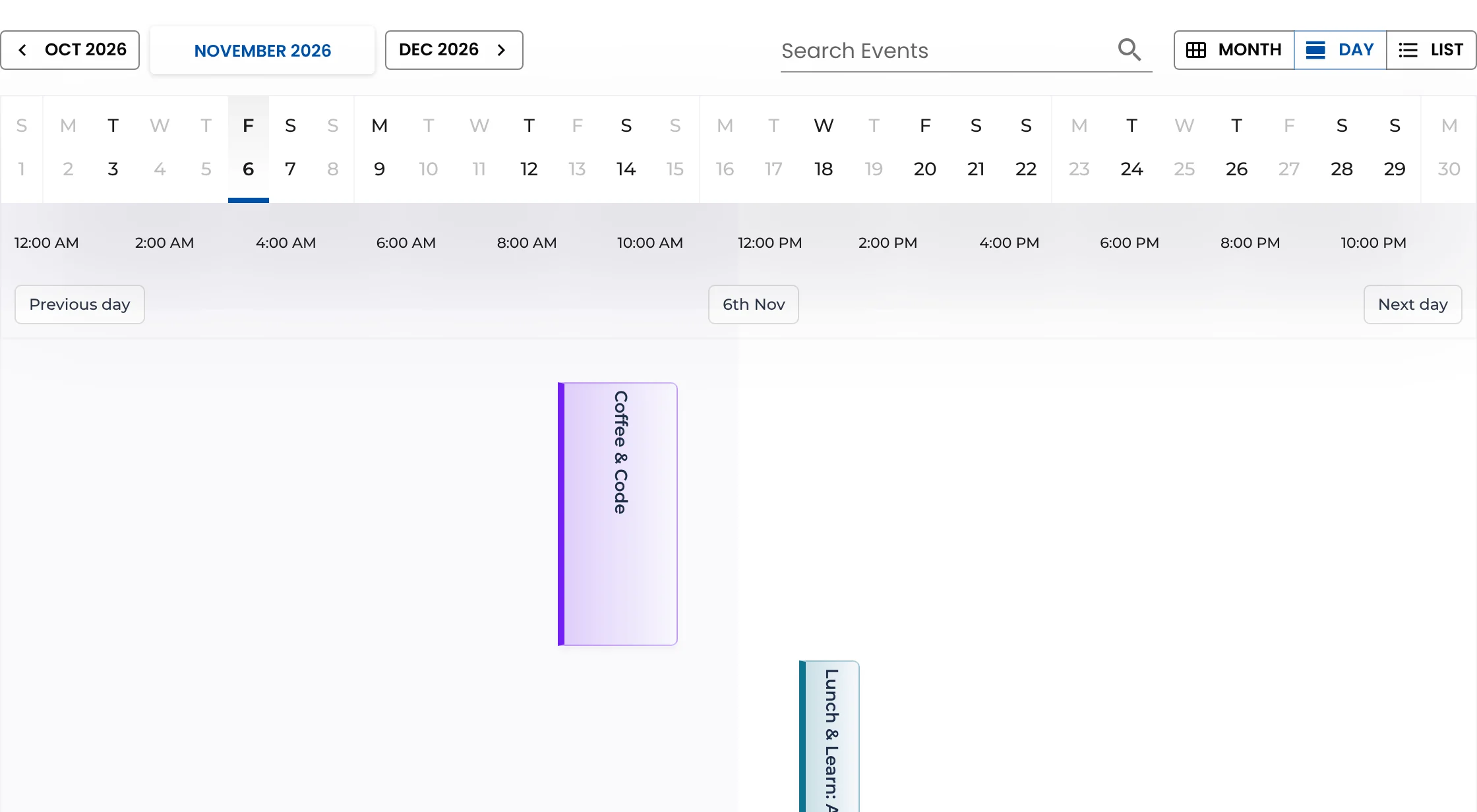
- Create a Schedule page with the calendar in day view:
[wp_monthly_events view="day"]The day view lays the sessions out on a timeline, with a strip of dates at the top for moving between conference days.
Set the timezone once, right
Each session has its own Timezone field. Set it to the city the conference is held in. Attendees then see every session in their own local time — essential for hybrid events and for remote viewers.
A keynote at 09:30 in Europe/Berlin shows as 14:00 for a viewer in India and 03:30 for one in New York (outside daylight saving), without anyone doing the maths. How timezones work
Multi-day events and socials
For the conference itself, add one event spanning all days (for example “DevConf 2026, 10–12 June”) with a distinctive colour — it shows across those days in the month view and is a good landing link. Workshops the day before and socials in the evening are separate events with their own venue.
Help attendees plan
- Add to Calendar on every session page lets attendees save the talks they want, with the room in the location field.
- The list view works well for a “Coming up next” block on the homepage during the event:
[wp_monthly_events view="list"]. - Use search on the schedule page so people can find a speaker or topic.
Summary
Sessions as events, rooms as venues, speakers as organizers and tracks as categories turn Monthly Events Calendar into a clean conference schedule, with a daily agenda and correct local times for everyone. Read more about the daily agenda view or venues and organizers.
Keep reading
- How to Create a Church Events Calendar in WordPress
- How to Run a Community Events Calendar on WordPress
- How to Show a Class Schedule in WordPress (Gyms, Studios and Schools)