How to Build a Sports Club Calendar in WordPress
Players, parents and supporters all ask the same questions: when’s the next game, where is it, and is training on? A sports club calendar on your WordPress site answers them in one place — and lets everyone save the fixtures they care about to their phone.
In short: one category per team, one venue per ground, one event per fixture or session. A month view on the club’s “Fixtures” page, the list view on the homepage, and each team page linking to its own team calendar.
Plan the structure
| What | Use | Example |
|---|---|---|
| Teams or sections | Event categories | First XI, Under-12s, Women’s, Veterans |
| Event types | Event tags | home, away, cup, training, social |
| Grounds | Venues | Main Ground, Training Pitch, opponents’ grounds |
| Contacts | Organizers | Team manager, fixtures secretary |
| Colours | Highlight Color | One per team, or one for home and one for away |
Each team category gets its own calendar page — for example /events-category/under-12s/ — so parents of Under-12s can see only their child’s games. Categories and tags
Step 1: Install and set up
Install Monthly Events Calendar (Plugins → Add New Plugin). Under Events Calendar → Settings, set your timezone and time format. Then add your teams as Event Categories and your grounds as Venues, with full addresses — away grounds too, as you play them.
Step 2: Add fixtures
Give each fixture a consistent title, such as “Under-12s v Riverside Rovers (H)” — team, opponent, home or away. Then set:
- Date and time: kick-off as the start; the expected finish as the end. Mention the meet time in the description (“Meet 9:15 for a 10:00 kick-off”).
- Venue: the ground. Away fixtures get the opponent’s ground, so the address goes into people’s calendars.
- Category and tags: the team, plus home/away and cup/league.
- Description: kit colours, what to bring, parking, and the result after the game.
Weekly training: recurring events are planned for version 2.0. Until then, either add training sessions for the coming month in one go, or put the regular training schedule on each team page and keep the calendar for fixtures and changes (“Training cancelled — pitch waterlogged”).
Step 3: Publish
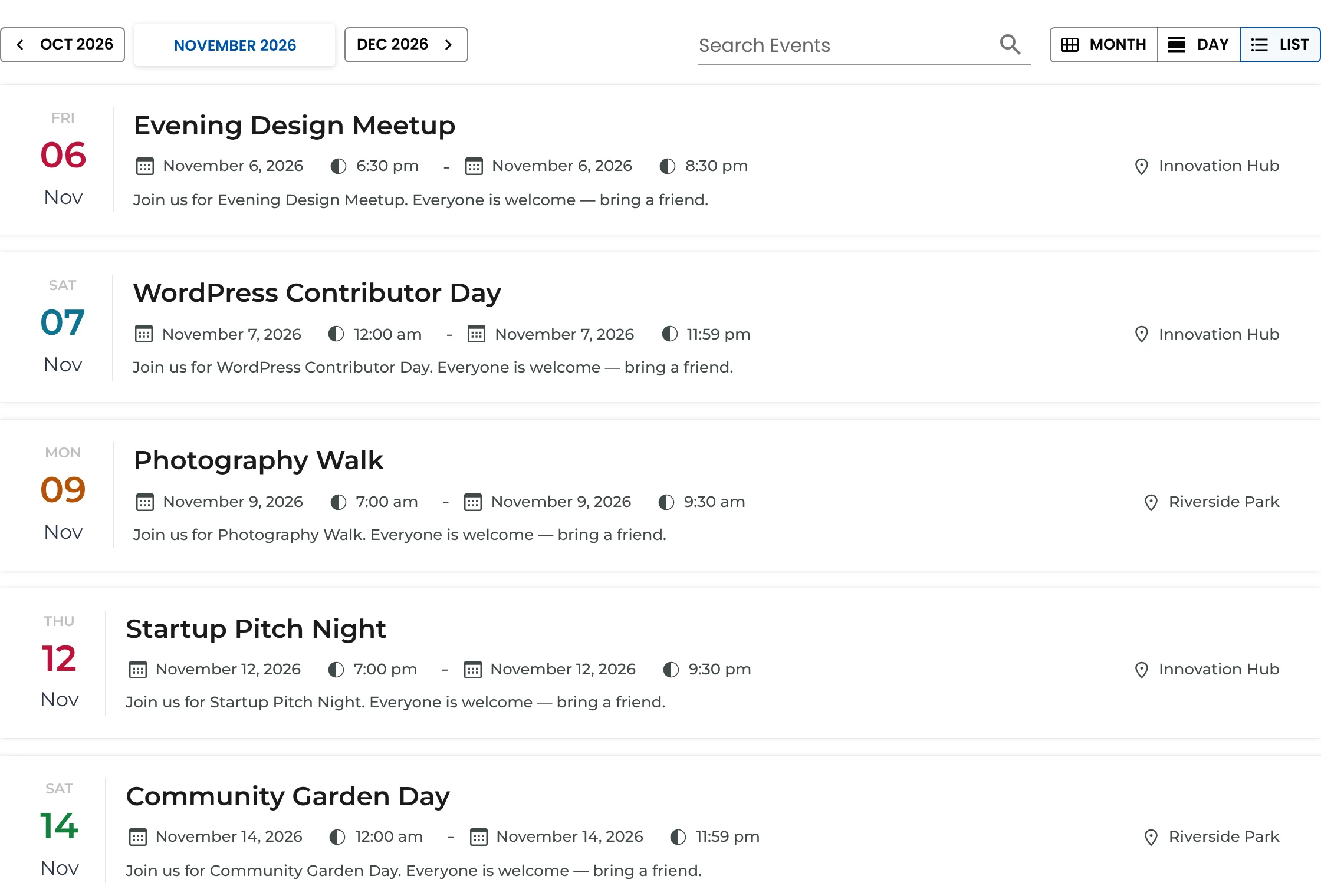
- Fixtures page: the month view,
[wp_monthly_events], or the Monthly Events Calendar block. - Homepage: the next few fixtures with
[wp_monthly_events view="list"]. - Team pages: a link or button to that team’s category calendar.
Step 4: Let everyone save their fixtures
Each fixture page has an Add to Calendar button, so a parent can add a game to Google, Apple or Outlook in two taps — with the ground’s address, so directions are one more tap away. Add to Calendar
Step 5: Handle changes fast
Postponements and venue swaps happen every week in some sports. When they do:
- Update the event — new date, new time, or “POSTPONED” at the start of the title.
- Post the change wherever your club communicates (WhatsApp, email, social), linking to the event page.
- Keep the event page rather than deleting it, so people who saved it can check.
Season admin
- Before the season: add the fixture list as soon as the league publishes it. Do it in one sitting with venues already saved.
- During the season: add results to descriptions; they make a useful record.
- After the season: leave past fixtures where they are — they’re your club’s history, and old links keep working.
Running a school with lots of sports teams? See how to build a school events calendar.
Keep reading
- How to Set Up a Library Events Calendar in WordPress
- How to Build a School Events Calendar in WordPress
- How to Publish a Conference Schedule in WordPress
Get your fixtures online
Free, easy for club volunteers to keep up to date.