What to Put on an Event Page: A 12-Point Checklist
People decide whether to come to an event in a few seconds, usually on a phone. If the page doesn’t answer their questions, they move on. Use this event page checklist to make sure every event you publish answers them — whatever tool you use.
The short version: what, when, where, how much, how to book, who it’s for — then make it easy to save and share.
The essentials
1. A title that says what it is
“Autumn Craft Fair — 40 local makers” beats “Saturday Event”. The title is what appears in calendars, search results and link previews, often without anything else around it.
2. Date and time — with an end time
Give the start and the end. People plan around both: babysitters, parking, the train home. For all-day events, say so rather than “00:00–23:59”.
3. The time zone, for anything online
If anyone could join from somewhere else, the time needs a time zone — or better, the time converted to the visitor’s own. Online event time zones
4. Where, exactly
The venue name and full address, plus anything that helps people find it: “Enter through the side gate on Mill Lane”, “Room 2, first floor”. For online events: the platform and when the link will be sent.
5. What it costs and how to get in
Free, pay on the door, or tickets in advance? Link the booking page clearly. If it can sell out, say so.
6. Who it’s for
Ages, experience level, members only, everyone welcome? A one-line answer saves people from wondering.
The details that make people commit
7. What happens
Two or three sentences on what people will actually do or see. A rough schedule helps for anything longer than a couple of hours.
8. Accessibility information
Step-free access, accessible toilets, seating, hearing loop, quiet spaces, captions for online events. If you don’t know, say who to ask. Accessible events calendar checklist
9. Who’s organising it — and how to contact them
A name and an email or phone number builds trust and answers the question you didn’t think of. Venues and organizers
10. A good image
A photo from a previous event or a clear poster. It’s what shows when the page is shared, so make sure the important parts survive being cropped to a wide rectangle.
Make it easy to come back to
11. An Add to Calendar button
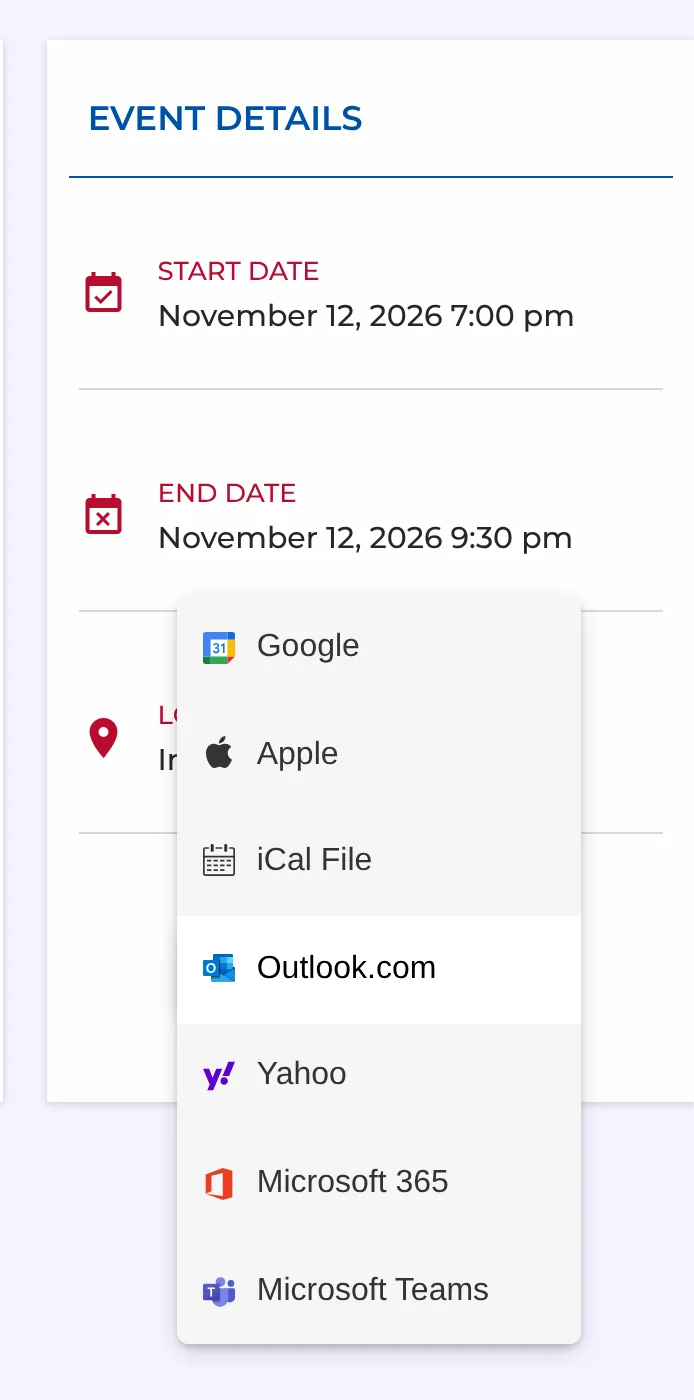
The single most useful thing on an event page after the date. One click and the event — with its time and location — is in the visitor’s own calendar, with a reminder. Add to Calendar
12. A page that stays up to date
If the time or place changes, update the page — don’t create a new one. Keep the same address, so links people already shared still work. If it’s cancelled, say so at the top rather than deleting the page.
Before you publish
Open the page on your phone and ask: could someone who’s never heard of us decide to come, find the place and get in, without contacting us? If yes, you’re done.
How Monthly Events Calendar covers the list
| Checklist item | Where it comes from |
|---|---|
| Date, start and end time | Event Details — date range picker |
| All-day events | All-day event checkbox |
| Time zone | Per-event timezone (1.6); visitors see local time |
| Venue and address | Saved venues, shown on every event page |
| Organizer and contact | Saved organizers |
| Booking link | The event’s URL field |
| Image | Featured image |
| Add to Calendar | Built into every event page |
| Everything else | The event description |
Creating events, field by field
Keep reading
- 10 Ways to Promote Events on Your Website
- Why Event Plugins Slow WordPress Down — and How to Keep a Lightweight Events Calendar
- Accessible Events Calendars: A WCAG Checklist for Event Listings
Event pages that answer the questions
Free, with Add to Calendar on every event.