How to Create a Church Events Calendar in WordPress
A church’s week has a rhythm — services, prayer meetings, small groups, youth nights — plus the special events that bring visitors through the door. A good church events calendar shows both, keeps itself tidy, and lets people save what they’re coming to. Here’s how to set one up in WordPress with a free plugin.
In short: create categories for each ministry, save your rooms and locations as venues, add one event per gathering, and publish a month calendar on an “Events” page plus a list of what’s next on the homepage.
Plan before you add anything
Ten minutes of planning saves hours later. Write down:
- Your categories — usually one per ministry area: Worship, Small groups, Youth, Children, Community, Outreach, Special events. Five to eight is plenty.
- Your venues — the main sanctuary, the hall, the church office, and any outside locations you use often (a park for the summer picnic, a partner church).
- Who keeps it up to date — one or two people with editor access, and a weekly 10-minute slot to add and check events.
Step 1: Install the calendar
In WordPress, go to Plugins → Add New Plugin, search for Monthly Events Calendar, install and activate. Then open Events Calendar → Settings and set the date and time format your congregation is used to and your church’s timezone.
Step 2: Create categories and venues
- Events Calendar → Event Categories: add the categories from your plan. Each one gets its own calendar page, such as
/events-category/youth/— perfect for linking from your Youth ministry page. - Events Calendar → Venues: add each room and location once, with the full address. You’ll pick them from a list from then on, and visitors get the address on every event page. Venues and organizers
Step 3: Add your events
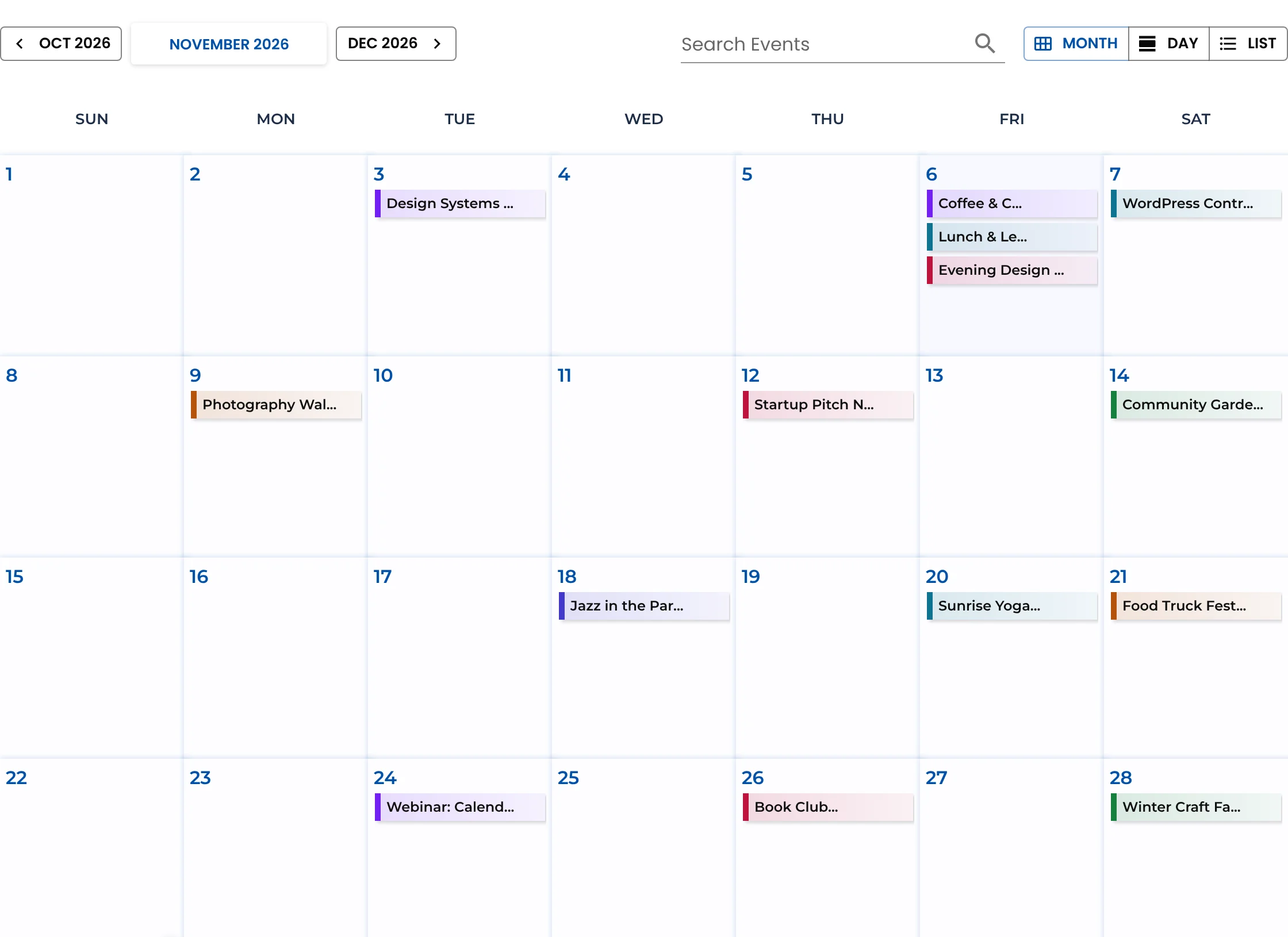
For each gathering, go to Events Calendar → Add new Event and fill in the title, a short welcoming description, the date and time, the venue, the category and a highlight colour (one colour per category works well).
Some practical tips for churches:
- Write for visitors, not just members. “Sunday Service — all welcome, children’s church at 10:30” is better than “Service”.
- Mark special services clearly. Christmas Eve, Easter and harvest services are when newcomers search. Give them their own events with a featured image and full details — parking, accessibility, what to expect.
- Use all-day events for things like a church weekend away or a day of prayer.
Weekly gatherings: Monthly Events Calendar doesn’t do repeating events yet — that’s planned for version 2.0. Until then, add regular gatherings for the next month or term in one sitting. Many churches only list weekly services on a “Visit us” page and keep the calendar for everything else, which also keeps the calendar easier to read.
Step 4: Publish the calendar
Create a page called Events (or What’s On), add the Monthly Events Calendar block — or paste [wp_monthly_events] — and publish. Then:
- add Events to your main menu;
- show the next few events on your homepage with the list view,
[wp_monthly_events view="list"]; - link each ministry page to its category calendar.
Step 5: Help people actually come
- Add to Calendar: every event page has a button that saves the event to Google, Apple, Outlook and others, so members get a reminder on their phone. How it works
- Share event pages, not the calendar: in the bulletin, newsletter and social posts, link straight to the event page.
- Use the organizer field for the contact person — “Questions? Ask Sarah, Youth Leader” — with an email or phone.
A sample setup
| Category | Colour | Example events |
|---|---|---|
| Worship | Purple | Christmas Eve Carol Service, Easter Sunday |
| Small groups | Blue | Tuesday Bible study (each week this term) |
| Youth | Orange | Friday youth night, summer camp |
| Community | Green | Food bank collection, community breakfast |
| Special events | Red | Harvest supper, guest speaker evening |
Moving from another calendar
If your church site already uses The Events Calendar, you can try Monthly Events Calendar without moving anything: your existing events appear in it straight away, and you can import them later in one click. Switching guide
Keep reading
- How to Run a Community Events Calendar on WordPress
- How to Show a Class Schedule in WordPress (Gyms, Studios and Schools)
- How to Build a Live Music Calendar for Your Venue or Band
Give your church a calendar people use
Free, simple to keep up to date, works with any church theme.