How to Add an Events Calendar to a Kadence Site
Kadence is built on the block editor, so adding a calendar doesn’t need shortcodes or add-ons: you insert a block. This guide builds a Kadence events calendar step by step — the events page, a homepage section and event pages that match the theme. (This site runs on Kadence too.)
What you need: the Kadence theme, optionally Kadence Blocks, and the free Monthly Events Calendar plugin.
Step 1: Install the calendar and add events
Install Monthly Events Calendar from Plugins → Add New Plugin and activate it. Under Events Calendar → Settings, set your date and time format and the default timezone, then add a few events under Events Calendar → Add new Event. Our creating events guide explains each field.
Step 2: Build the Events page
- Create a page called Events.
- In the Kadence page settings panel (the Kadence icon at the top right of the editor), set Page Title to Hide if you’ll add your own heading, Content Style to Unboxed and Content Layout to Fullwidth. That gives the month grid the whole width.
- Add a Row Layout block (Kadence Blocks) with one column, and set its max width to your site’s content width or a little wider.
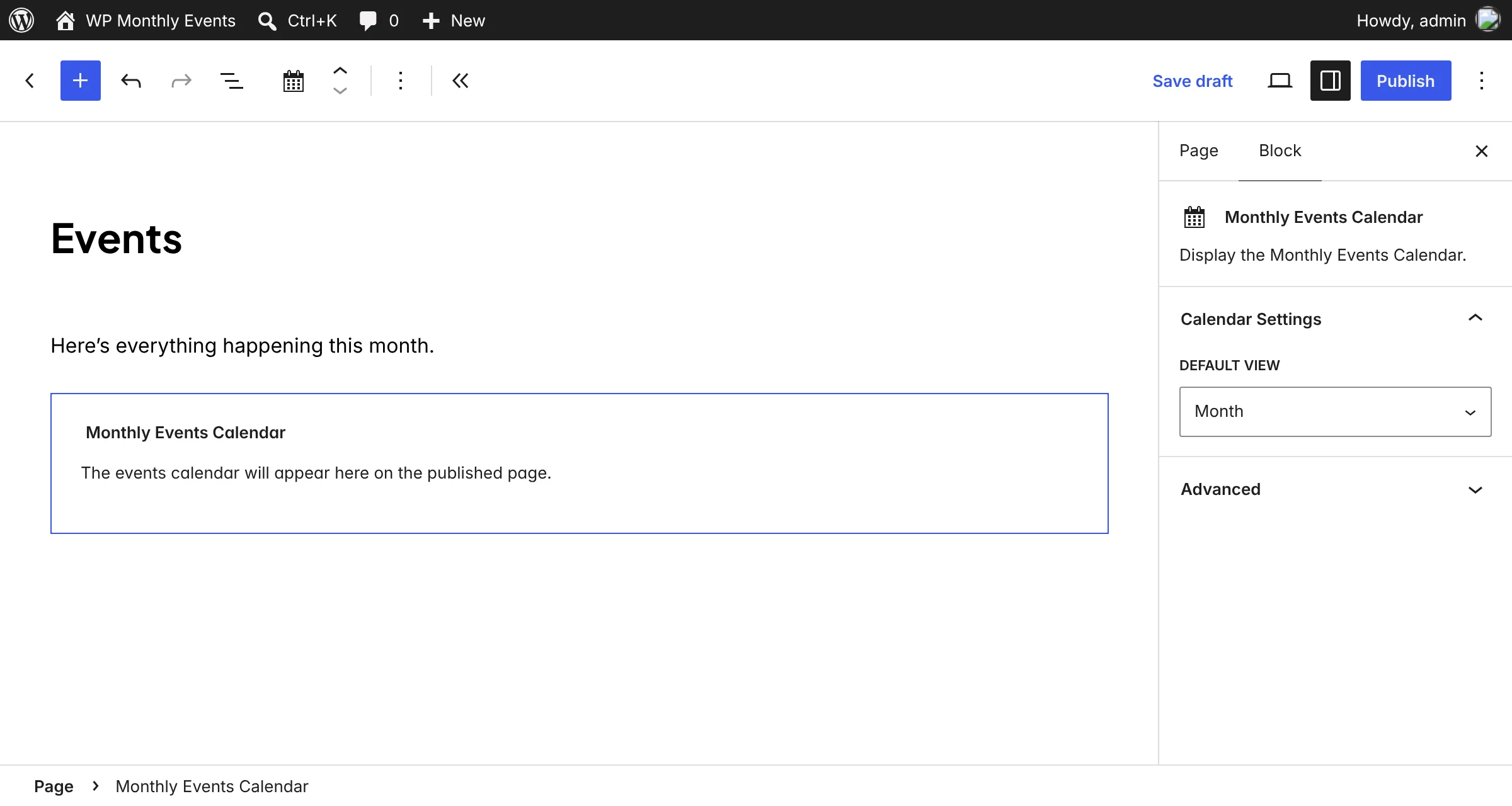
- Inside it, add a Heading (“What’s on”) and then the Monthly Events Calendar block.
- In the block sidebar, choose the Default view: Month, List or Day.
No Kadence Blocks? Use the core Group block instead of a Row Layout — everything else is the same.
Publish, then set the page under Events Calendar → Settings → Select Calender Page.
Step 3: Add upcoming events to the homepage
On your homepage, add a Row Layout with a tinted background (pick a colour from Kadence’s global palette), then:
- a Heading — “Upcoming events”;
- the Monthly Events Calendar block with Default view: List;
- a Button linking to your full Events page.
The list view stacks neatly on phones. Keep the calendar’s search box on for the main Events page, and consider turning it off (Events Calendar → Settings) if your homepage section feels busy. More on showing upcoming events
Step 4: Event pages that fit the theme
Event pages use Kadence’s header and footer automatically. A few settings make them feel native:
- Customizer → Colors: the event title and text pick up your Kadence colours.
- Highlight colours: use your Kadence palette colours on each event so the calendar matches your buttons and links.
- Kadence Elements (Pro): if you insert hooked elements on “all singular content”, check they look right on event pages too, or exclude the Events post type.
Step 5: Category calendars in the menu
Every event category has its own calendar page, at /events-category/category-name/. In Appearance → Menus (or the Customizer’s menu panel), add Event Categories as menu items — for example “Kids”, “Concerts”, “Workshops” under an “Events” dropdown. Categories and tags
Speed
Kadence is one of the lighter themes around, and it’s worth keeping it that way. The calendar loads events after the page renders, so it doesn’t hold up your content, and it works with Kadence’s own performance options and caching plugins. Read our notes on keeping an events calendar lightweight.
Other builders
Using Elementor, Divi or Avada on another site? See the page builder guide.
Keep reading
- Embed Google Calendar in WordPress — or Use an Events Plugin?
- How to Add Google Calendar Events to WordPress (3 Ways)
- How to Let Visitors Submit Events in WordPress (Free)
Add a calendar to your Kadence site
Free, a native block, ready in minutes.