How to Build a School Events Calendar in WordPress
Parents check a school website for one thing more than any other: what’s happening and when. A school events calendar in WordPress puts term dates, holidays, parents’ evenings, trips and fixtures in one place, so the office answers fewer “is it an inset day?” emails. This guide sets one up with the free Monthly Events Calendar plugin.
Plan your categories first
Categories let parents see just what matters to them, and each category gets its own calendar page automatically. A structure that works for most schools:
- Term dates and holidays — all-day events.
- Parents’ evenings and meetings.
- Trips and visits.
- Sports fixtures.
- Performances and open days.
- Year groups (Year 7, Year 8… or Grade 1, Grade 2…) — use tags for these, so one event can belong to several years.
Create them under Events Calendar → Event Categories and Events Calendar → Event Tags before adding events.
Set up the school events calendar
- Install Monthly Events Calendar from Plugins → Add New Plugin and activate it.
- Under Events Calendar → Settings, choose the date format parents expect (for example
d/m/Yin the UK and India,m/d/Yin the US) and the time format. - Add the school’s main site as a venue under Events Calendar → Venues, plus any regular away venues for fixtures.
- Create a page called Calendar and add the Monthly Events Calendar block (or
[wp_monthly_events]). Set it as the calendar page under Events Calendar → Settings → Select Calender Page.
Use all-day events for term dates
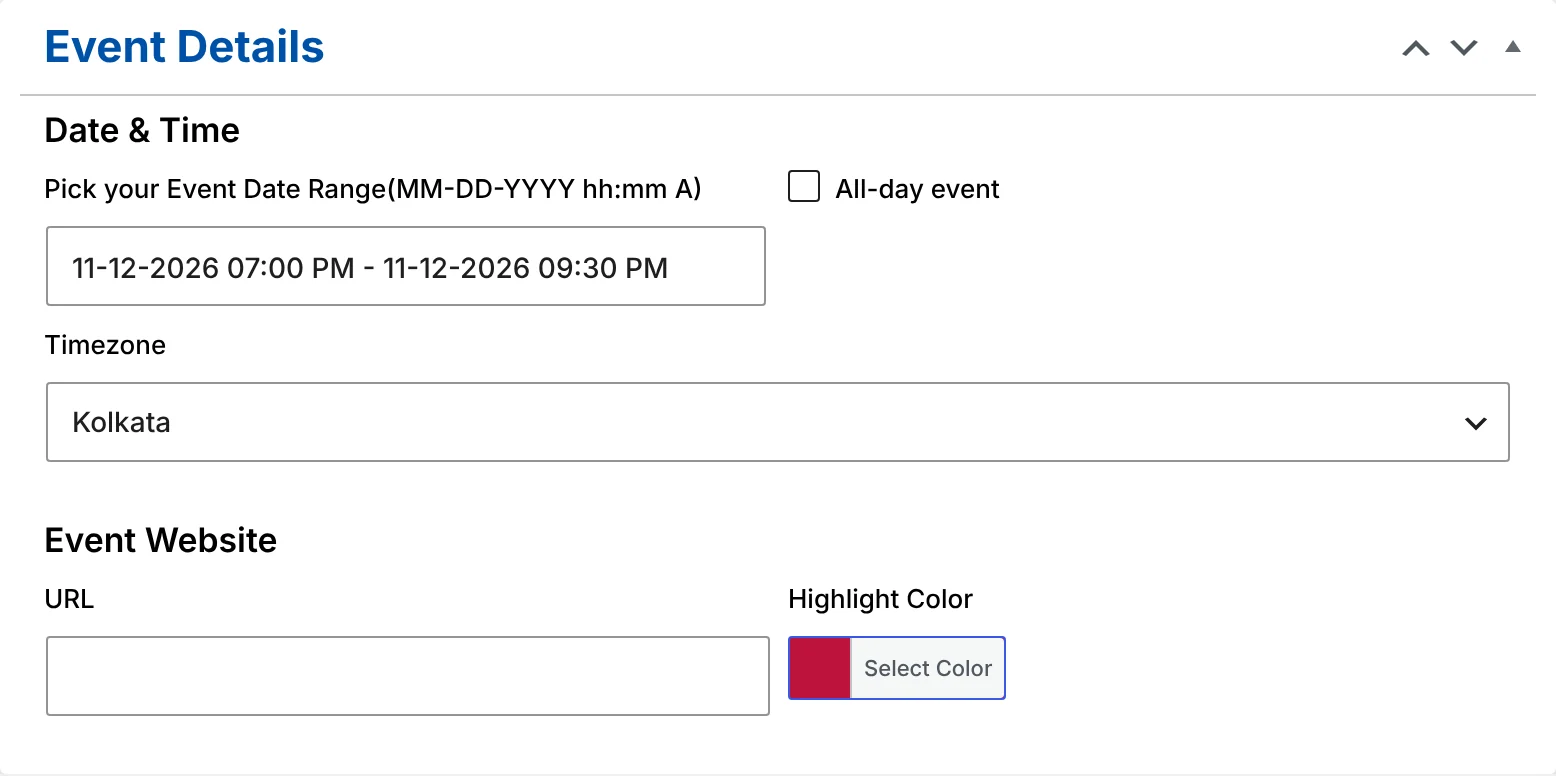
Term starts, half-terms, holidays and training days have no start time. Tick All-day event in the event editor so they cover the whole day — and stay on the right date for families who are travelling or living abroad. A holiday from Monday to Friday is one all-day event with a five-day range, not five events.
Give each type of event a colour
The Highlight Color on each event tints it in the calendar. Pick one colour per category — red for holidays, blue for meetings, green for sports — and the month view becomes readable at a glance.
Put the next events on the homepage
Add the list view to your homepage so the next few events are the first thing parents see:
[wp_monthly_events view="list"]See how to show upcoming events for page-builder steps.
Help parents add events to their own calendars
Every event page has an Add to Calendar button for Google Calendar, Apple, Outlook.com, Yahoo and Microsoft 365. Mention it in your newsletter: one tap on the parents’ evening page and it’s in their phone with the right time and address.
Keep it up to date
- Give office staff the Editor role so they can add and change events without access to the rest of the site.
- Add the full year’s term dates in one sitting at the start of the year.
- Use the event description for practical details: what to bring, pick-up times, kit lists.
Summary
A school events calendar works when it’s complete, colour-coded and easy to reach. Categories for each type of event, all-day term dates, an upcoming list on the homepage and Add to Calendar on every event cover what parents need. Explore the monthly calendar view or start with the installation guide.
Keep reading
- How to Publish a Conference Schedule in WordPress
- How to Create a Church Events Calendar in WordPress
- How to Run a Community Events Calendar on WordPress